

Try Vibe Coding For Free
Make a website and publish it using all free tools

Learn AI Coding By Doing, For Free
You’re going to tell your computer what you want, watch it build a website in front of you, and then publish it to the internet — all in one sitting. The whole thing is free.
The tool is called OpenCode. It’s like having a developer sitting next to you who never gets tired and works for free — as long as you tell it exactly what you need.
By the end of this guide, you’ll have:
A real website, live on the internet, that you built
A system to track every change you make (so you can never accidentally break it)
The confidence to keep going
Let’s do it.
Part 1: What You’re About to Do
Here’s the whole process in plain language:
Plan what your website should look like (you’ll write this down)
Gather any photos, text, or ideas you want on it
Talk to an AI tool that writes the code for you
Look at what it made, and tell it what to change
Save your work so you never lose it
Publish it to the internet for free
That’s it. No coding bootcamp. No $200/month website builder. No asking your nephew for help.
Part 2: Setting Up Your Workshop
You need two things installed. Both are free. This is the only slightly technical part — and it’s all clicking buttons, no typing required.
Thing 1: OpenCode Desktop (the AI coding assistant)
OpenCode just launched a desktop app. Download it the same way you’d download any app.
Go to opencode.ai/download
Click the download button for your system:
Mac with Apple Silicon (M1/M2/M3/M4 chip): click “macOS (Apple Silicon)”
Mac with Intel chip: click “macOS (Intel)”
Windows: click “Windows (x64)”
Open the downloaded file and install it like any normal app
On Mac: drag it to your Applications folder
On Windows: run the installer, click through the prompts
Open OpenCode from your Applications / Start menu
Not sure which Mac you have? Click the Apple menu () in the top left → “About This Mac.” If it says “Apple M1” or higher, you have Apple Silicon. If it says “Intel Core,” you have the Intel version.
When it opens for the first time, OpenCode will ask how you want to connect an AI model. This is where you pick your free brain.
Thing 2: Pick a Model
When OpenCode opens for the first time, it’ll ask which AI model you want to use. Here’s the simplest path:
Start with Zen — it’s built right in, totally free, no account needed.
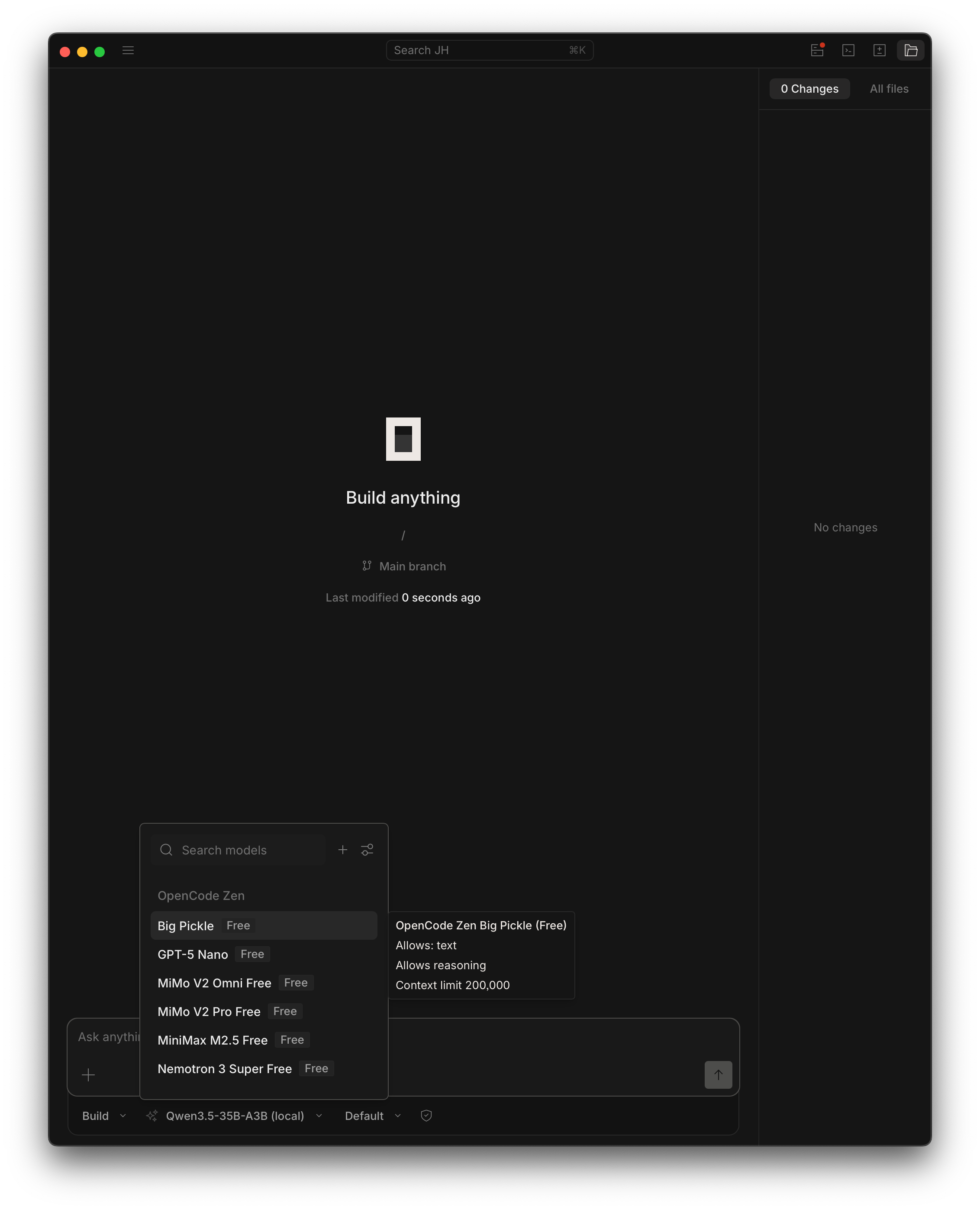
OpenCode includes something called Zen: a curated set of AI models they’ve tested and kept free for users. When you first open OpenCode, look for the model selector and choose any Zen model. They’re all capable of building a basic website. They can be a little slow sometimes — that’s normal for free tier. Let it think.
You don’t need to sign up for anything. Just pick one and go.
Already have a paid AI subscription? Use it here.
If you’re paying for ChatGPT Plus, ChatGPT Pro, or GitHub Copilot, you can connect those accounts and get faster, smarter responses:
ChatGPT Plus/Pro: Click “Log in with OpenAI” in the model settings
GitHub Copilot: Click “Log in with GitHub”
It uses your existing subscription — nothing extra to pay.
Want access to more models? OpenRouter.
OpenRouter is a free account that gives you access to dozens of AI models, including some free ones and some paid. Good option once you know what you’re doing and want to experiment:
Create a free account at openrouter.ai
Go to “Keys” → “Create Key”
Copy the key and paste it into OpenCode’s provider settings
Keys are like passwords. Don’t share them or post them anywhere.
Once you’ve picked a model, you’ll see the chat interface — a text box where you type, and a pane where the AI responds and writes code. That’s your workshop.
Part 3: Plan Before You Build
This is the step most people skip, and it’s why most people’s first projects look bad. You’re not going to skip it.
Create a folder for your project first. In your documents, make a new folder. Call it my-website. That’s where everything lives.
Now open OpenCode and point it at that folder (the folder icon at the top). Then start a conversation.
Tell it what you want. It’ll write the plan.
Don’t worry about format or structure — just talk. Type something like:
I want to make a personal website. I'm a freelance photographer based in Austin.
I want a home page with a big photo, a gallery of my work, and a contact page.
I like clean, minimal designs — lots of white space, no clutter.
I want my Instagram linked and my email address visible.
I definitely don't want anything flashy or auto-playing.

Based on this, write me a PLAN.md file in this folder that I can use as a brief
for building the site.
OpenCode will do its best with what you give it, then write the file. Open PLAN.md and read it back. If something’s off, just say so in the same session: “Change the color direction — I actually want something warmer, earthy tones.” It’ll update the file.
One thing to know: OpenCode doesn’t remember between sessions. Each time you open it fresh, it starts from scratch. That’s exactly why we’re writing things down in files — PLAN.md and content.md are your project’s memory. Every time you start a new session, you’ll point it at the folder and tell it to read those files first. That’s what keeps it on track.
Keep going until the plan feels right.
Part 4: Gather Your Stuff
Now collect everything that belongs on the site and drop it into your my-website folder:
Photos: headshots, work samples, a logo — anything visual. Put them in a subfolder called
imagesLinks: your social profiles, email address, anything you want people to be able to click
Inspiration: a URL or two of sites you like the look of
Don’t worry about organizing it perfectly. Just get it in the folder.
Then ask OpenCode to distill it:
I've added some photos to the images/ folder and some rough notes.
Look at everything in this folder and write a clean content.md file
that organizes all my actual content — my bio, the links I want,
descriptions of my photos, and anything else you'd need to build the site.
Keep it clear and structured.
The AI will read what you’ve dropped in, pull out what’s useful, and write content.md — a clean brief with your actual words and assets mapped out. When you start building in Part 5, the AI will read both files and have everything it needs.
Your folder should end up looking like:
my-website/
├── PLAN.md       ← the blueprint (written by AI, approved by you)
├── content.md    ← your actual content, organized (written by AI from your stuff)
└── images/
    ├── headshot.jpg
    ├── project-1.jpg
    └── logo.png
Part 5: Start Building (The Fun Part)
Open the OpenCode desktop app. In the top area, look for “Open Folder” or a folder icon — click it and select your my-website folder. This tells OpenCode where your project lives.
You’ll see a chat window waiting for you. This is where you talk to the AI. Type:
Read PLAN.md and content.md first. Then build me a website based on those files.
Start with just the home page. Use the images in the images/ folder.
Make it a single index.html file with all styling included.
Then watch. The AI will start writing code. You’ll see it thinking, then files appearing in your folder. This is normal — let it work.
When it’s done, it will say so. Now go to your my-website folder on your Desktop and double-click index.html. It will open in your browser.
Your website will open in your browser. It won’t be perfect. That’s the whole point.
Part 6: Iterate (Tell It What to Change)
This is where vibe coding gets fun. You’re having a conversation. Look at what it made and tell it what to fix:
The headline is too small. Make it bigger and bolder.I don't like the shade of blue. Make it more of a navy, like #1a2332.Move the photo to the right side of the bio section.Add the About page. Link to it from the navigation at the top.The contact page needs my email and links to LinkedIn and Instagram.
Make the icons clickable.Tips for getting the best out of OpenCode:
Be specific. “Make it better” gives it nothing to work with. “Make the heading font bigger, bolder, and add more space below it” does.
One thing at a time. Ask for 1-2 changes, look at the result, then continue. Stacking 10 requests usually produces a mess.
Reference what you see. “The text under the photo” is clearer than “the text.” Describe what’s on screen as if you’re explaining it to someone who can’t see it.
“Undo that” works. If it made something worse, say: “That last change didn’t work. Revert it and try a different approach.”
Describe what’s broken, not what you think the cause is. “The photo is overlapping the text on the right side” is more useful than “fix the CSS.” You see the problem; it knows the code.
Start new sessions with context. Each time you reopen OpenCode, it has no memory of what you built before. Begin with: “Read PLAN.md and content.md, then look at index.html. I want to continue working on this site.” That orients it fast.
Keep going until you like it. There’s no time limit. There’s no cost. You can make 5 changes or 50. This is your website.
Part 7: Track Your Work with GitHub
Right now, your website exists only on your computer. If you accidentally delete the folder, it’s gone. Let’s fix that — and set up the system you’ll use to publish it.
What is GitHub?
GitHub is where developers store their code. Think of it like Google Drive, but for code projects. It keeps every version of your work, so you can always go back if something breaks. And it can host your website for free.
Create a GitHub Account
Go to github.com
Click “Sign up”
Use your email, pick a username, create a password
Free plan is all you need
Install GitHub Desktop
GitHub Desktop is a real app — no terminal required.
Go to desktop.github.com and download it
Install it and sign in with your GitHub account
Click “Add” → “Add Existing Repository” → navigate to your
my-websitefolderIf it says “this isn’t a repository,” click “create a repository here instead”
Name:
my-websiteKeep everything else default
Click “Create Repository”
You’ll see your files listed on the left. In the “Summary” box at the bottom, type:
First version of my websiteClick “Commit to main”
Click “Publish repository” in the top bar
Uncheck “Keep this code private” (it needs to be public for free hosting)
Click “Publish Repository”
That’s it. Your work is now backed up on GitHub.
Every time you make changes — come back to GitHub Desktop, write a quick note about what you did (”updated homepage colors”), click “Commit to main” then “Push origin.” That’s how you save your work and keep the live site updated.
Why bother? Two reasons. You can never lose your work — even if your computer dies, it’s all on GitHub. And this is exactly how professional developers work. You’re learning the real workflow without realizing it.
Part 8: Publish to the Internet (For Free)
Your website is on GitHub. Now let’s make it live.
Go to your repository on github.com (
github.com/YOUR-USERNAME/my-website)Click Settings (the gear icon tab)
In the left sidebar, click Pages
Under “Source,” select Deploy from a branch
Under “Branch,” select main and / (root)
Click Save
Wait 2-3 minutes
Your website is now live at:
https://YOUR-USERNAME.github.io/my-websiteThat’s it. You just built and published a website. Send that link to someone. It’s real. It’s yours.
Every time you push changes to GitHub (Part 7), your live site updates automatically. Change something in Open Code, commit it, push it — the world sees it within minutes.
Part 9: Stretch Goal — Add Your Own Domain Name
Right now your site lives at your-username.github.io/my-website. That’s fine, but if you want www.yourname.com, here’s how:
Buy a Domain
Go to a domain registrar — Namecheap, Porkbun, or Google Domains are all good
Search for the name you want
Buy it (usually $8-15/year — this is the only thing in this guide that costs money)
Connect It to GitHub Pages
On your domain registrar’s site, go to DNS settings
Add these records:
Type:
A, Value:185.199.108.153Type:
A, Value:185.199.109.153Type:
A, Value:185.199.110.153Type:
A, Value:185.199.111.153Type:
CNAME, Name:www, Value:YOUR-USERNAME.github.io
Back on GitHub: Settings → Pages → Custom domain → type your domain → Save
Check “Enforce HTTPS”
Wait up to 24 hours (usually faster)
If this feels like too much, skip it for now. The .github.io URL works perfectly fine. Come back to this when you’re ready.
What You Just Learned (Without Realizing It)
Seriously — look at what you did:
Wrote a project brief (that’s product management)
Directed an AI to build something (that’s prompt engineering)
Iterated on a design (that’s design thinking)
Used version control (that’s professional software development)
Deployed to production (that’s DevOps)
Configured DNS (that’s systems administration)
You didn’t learn to “code.” You learned to build. The code is just one layer — and the AI handles that part. Everything else? You just did it.
What to Do Next
Keep going. Change your site. Add pages. Try new layouts. Each time you sit down, start the session by telling OpenCode to re-read your files and look at where things are — it needs that grounding every time.
When you get stuck: Describe what you’re seeing. “The layout breaks on my phone — the text goes off the right edge” or “I want to add a blog section but I don’t know where to start — what would the simplest version look like?” Concrete and specific always beats vague.
When you outgrow this setup: There are paid models that are smarter, faster, and handle more complex projects. But you don’t need them yet. When you do, the workflow is identical — you already know how it works.
Bonus: Prompts to Get More Out of OpenCode
OpenCode is a powerful tool, but it only knows what you tell it. It doesn’t learn over time. It doesn’t remember you. Every session, it reads what’s in your folder and works from there.
That means the quality of what it produces is almost entirely determined by how clearly you communicate. Here are some prompts worth keeping handy — copy and adapt them when you need them.
To understand what you have:
“Read every file in this folder and give me a plain English summary of what the site does and how it’s structured.”
“What does the CSS file do? Explain it like I’ve never seen code before.”
“Walk me through what happens step by step when someone opens my website in a browser.”
To fix problems:
“The site looks fine on my laptop but on my phone the text runs off the right side of the screen. Read the code and fix it.”
“Something broke and I’m not sure what. Compare index.html to the description in PLAN.md and tell me if anything looks wrong.”
“I made some changes and now the navigation doesn’t work. Read the file and find the problem.”
To go further:
“I want to add a contact form that sends me an email when someone fills it out. What’s the simplest free way to do that? Walk me through it.”
“I want to add a second page called ‘Work.’ Read the existing site and build a new page that matches the same style.”
“What would I need to add to this site to make it easier to find on Google? Give me a practical list.”
One pattern that consistently gets better results: start every session the same way. Something like:
Read PLAN.md, content.md, and index.html. Here's what we're working on today: [your task].That one habit — re-orienting the AI at the start — will save you more frustration than anything else in this guide.
Go Deeper
I teach people to become experts of AI workflows and tools, and design their own personal agent systems. Most of my clients have never written a line of code. We start exactly here, and within weeks they’re building tools that run parts of their business.
If you got through this guide, you already have what it takes. Book an intro session if you’re ready to skip the solo learning curve and go faster.